




More pixels, finer detail
Increase resolution and apply AI enhancement. Results vary with the source video.
Remove embedded Chinese or English subtitles. Standard removal is efficient; refined removal uses high-frame-rate OCR and AIGC repair.
MediaKit input up to 2K · no published file-size or duration cap
MP4, FLV, TS, AVI, MOV, WMV and MKV supported
For general and cost-sensitive footage: MediaKit ¥0.4/min; this app charges 20 credits/min.
Smart detection targets white subtitles in the lower half, near the horizontal center, with text height around 1%–10%; OCR is optimized mainly for Chinese and English. Input up to 2K (2560 long edge, 1440 short edge).
MP4, FLV, TS, AVI, MOV, WMV and MKV supported
Private uploads. Only your account can access your files.Files are used for processing and managed from your library
One focused workspace, from upload to download, with the important limits explained up front.
Increase resolution and apply AI enhancement. Results vary with the source video.
Choose the output you need and see the exact size before processing.
Keep using your computer while your video is processed in the background.
Download an MP4 with H.264 video and a preserved AAC audio track.
Accept a fixed credit quote. You won't be charged extra when the task finishes.
Authenticated access, limited retention, and a delete control for your files.
Choose a video and resolution, then start and download the result
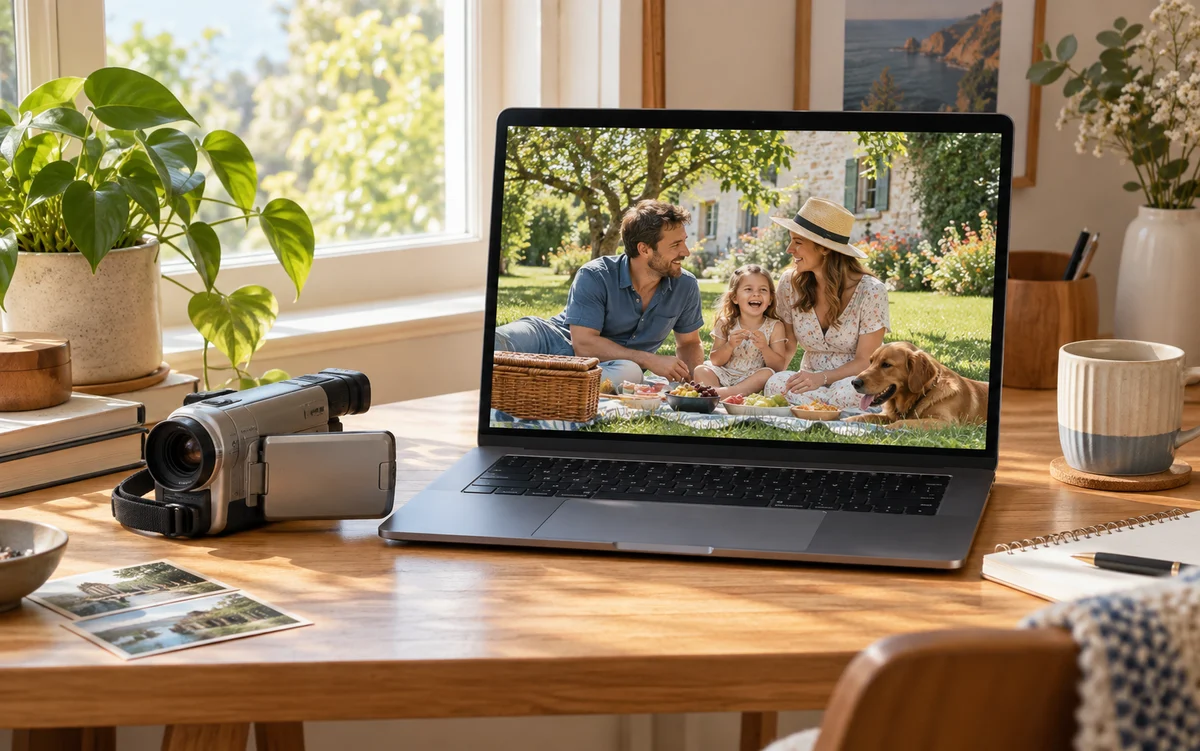
Memories, creative projects, and new ways to share your footage
Bring lower-resolution clips from your phone or camera to an HD canvas. Start with a short clip, review the result, and choose an output size that suits the moments you want to keep.
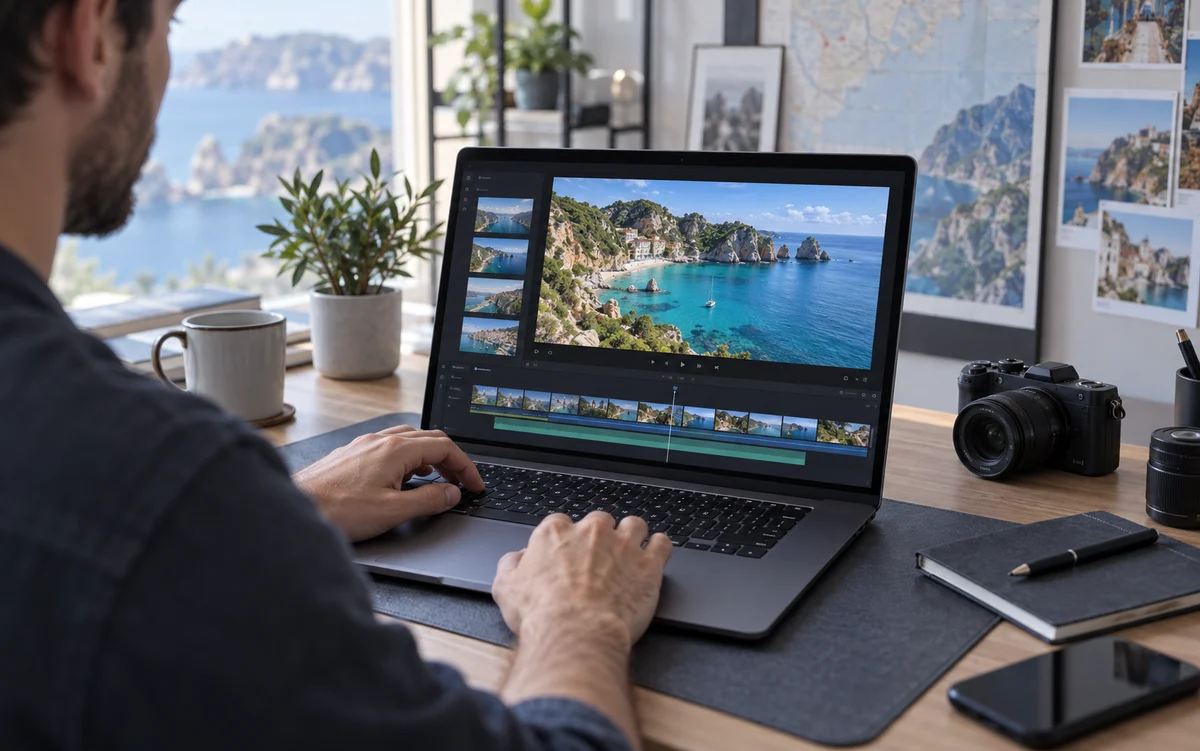
Prepare travel footage, social clips, and personal projects at a higher resolution. Keep the original aspect ratio and audio, then download an MP4 for the editing workflow you already know.
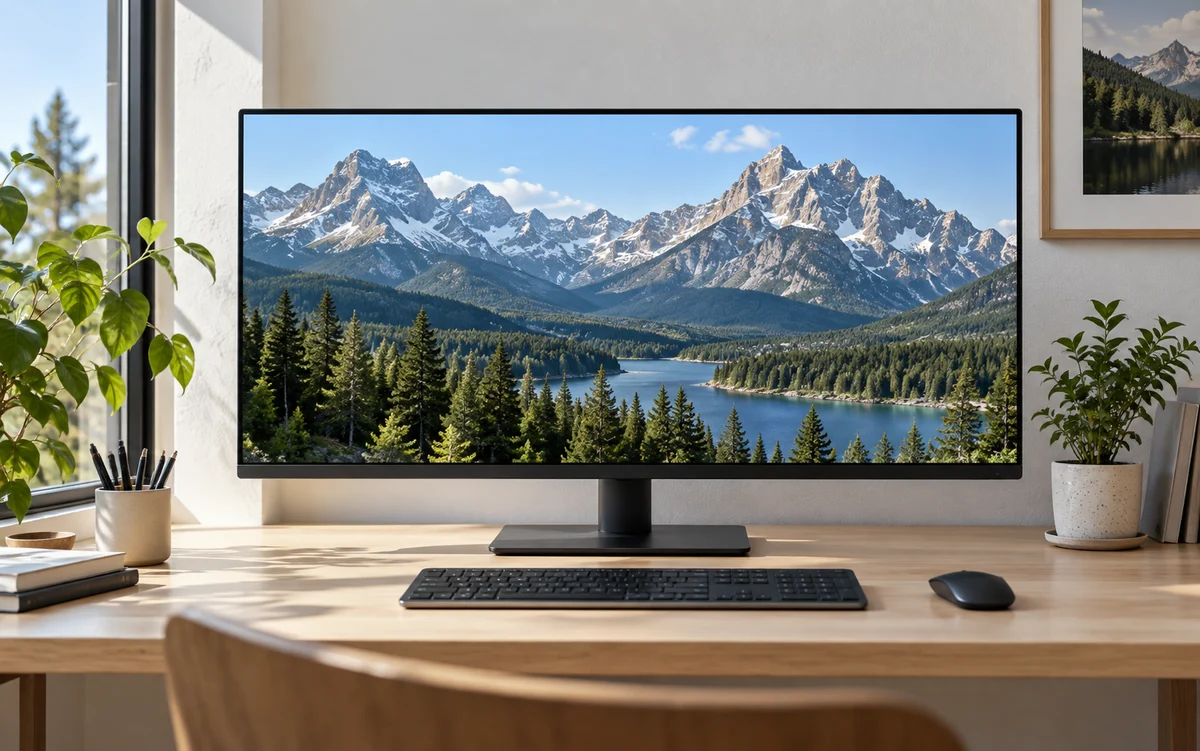
Choose 1080p or 4K and see the exact dimensions and credit quote before processing. Return to your library to preview, compare, and download the result. Improvement depends on the source footage.
Drag the divider to compare both sides. Press play to explore the details in motion.
Waves, rocks, and details in the distance
Comparison demo: lower- and higher-quality versions of the same stock clip demonstrate the player. These are not actual AI processing results.
Give your memories, everyday moments, and creative projects a clearer viewing experience. Upload a short clip, choose 1080p or 4K, and review the exact quote before starting. No installation: compare the result and save your enhanced video when it is ready.
Upscale your videoAnswers to common questions about upscaling your videos